How billing works
Plane uses a per-seat billing model for paid plans. This means you pay for the number of seats in your workspace, not the total number of users. Understanding this distinction helps you manage costs effectively while giving flexibility to your team structure.
Why per-seat instead of per-user?
Most SaaS tools charge per user. Every person who accesses the system counts toward your bill. Plane takes a different approach.
The per-seat model separates billing from user roles. You purchase seats for users who need full access (Admins and Members), while users who need limited access (Guests) don't consume paid seats. This reflects how teams actually work: not everyone needs the same level of access.
For example, a typical workspace might have:
- 20 Admins and Members (core team) = 20 paid seats
- 100 Guests (stakeholders, clients, contractors) = 0 additional cost
With per-seat pricing, you pay for 20 seats and get 5 Guest slots per paid seat (100 total Guest slots).
This model becomes more cost-effective as your Guest population grows.
How seat-based billing works
Workspace-level billing
Billing happens per workspace, not per organization. If you have multiple workspaces, each requires its own subscription. On self-hosted instances, each license key unlocks one workspace.
When you upgrade a workspace from Workspace Settings > Billing and plans, you're charged for all paid seats in that workspace, regardless of how those seats are distributed across projects within the workspace.
Seat allocation and usage
Seats are workspace resources that you assign to users. When you upgrade, you purchase a specific number of seats. Those seats form a pool that you allocate to Admins and Members.
For example:
- You upgrade with 50 seats.
- You assign 45 seats to current Admins and Members.
- 5 seats remain available for future.
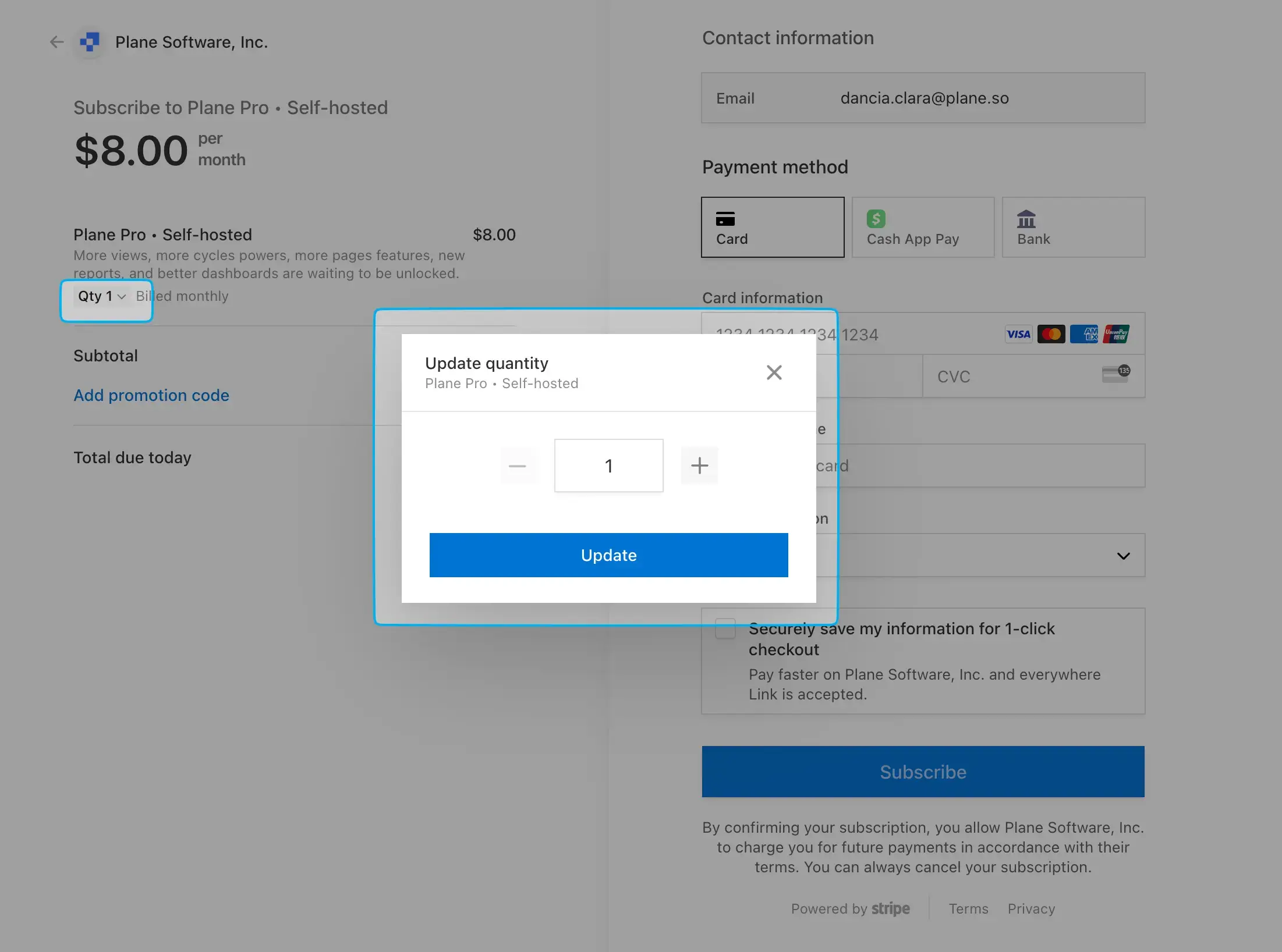
The initial seat count matches your current team size. When upgrading through Plane's interface, you automatically get as many seats as the number of Admins and Members currently in your workspace. On self-hosted instances upgrading through the Prime portal, you specify the seat count yourself.
Guest allocation
Every paid seat includes 5 Guest slots. These Guest slots are pooled at the workspace level, just like seats. If you have 20 paid seats, you get 100 Guest slots total (20 × 5).
Managing seats over time
Adding seats
You must add seats before adding new paid users. If all your seats are assigned and you want to add another Admin or Member, you first purchase additional seats from Workspace Settings > Members > Manage seats.
New seats are charged immediately to your card on file. The charge is either prorated (if you're mid-cycle) or at full price (if you're at the start of a cycle).
Prorating works proportionally. If you add 10 seats halfway through a monthly billing cycle, you're charged for 10 seats × 15 days (roughly half the monthly price). Those seats then renew at full price in your next billing cycle.
If you don't have a payment method on file, you must contact Plane support to adjust your seat count. The system can't automatically charge for new seats without payment information.
Removing seats
Removing members doesn't reduce your bill. When you remove a user from your workspace, their seat becomes available in the pool. You can reassign it to someone else. Your seat count and billing remain unchanged.
To actually reduce your billing, you must explicitly remove seats from Workspace Settings > Members > Manage seats. This action removes any seats that aren't currently assigned to users.
When you remove seats, the cost reduction is applied as a credit on your next invoice. This credit is prorated based on how much of the billing cycle remains.
For example, if you remove 10 seats halfway through your monthly cycle, you receive a credit for 10 seats × 15 days (roughly half the monthly cost).
The seats-versus-members distinction
This distinction causes confusion, so it's worth emphasizing:
Seats are billing units. They represent capacity, the maximum number of paid users you can have.
Members are people. They're the actual users assigned to your workspace.
Actions on members (adding, removing, changing roles) don't automatically affect your seat count or billing. Actions on seats (purchasing, removing) directly affect your billing.
Subscription lifecycle
Automatic renewals
Subscriptions renew automatically at the start of each billing cycle (monthly or annual, depending on what you selected). The renewal charge is processed through your payment method on file.
Stripe, Plane's payment processor, handles the renewal:
- An invoice is generated at the renewal date.
- The charge is attempted on your payment method.
- If successful, your subscription continues.
- If unsuccessful, Stripe retries the payment 3-5 times over 14 days.
- After 14 days of failed attempts, the subscription is automatically cancelled.
You receive email alerts before each billing attempt and after failed payments.
Mid-cycle changes
Billing frequency changes (monthly to annual, or vice versa) take effect at your next billing cycle. You can request this change from Workspace Settings > Billing and plans > Manage Subscription.
On Cloud, the change happens automatically. On self-hosted instances, you accept the change in the Stripe portal, then return to Plane and click Sync plan from Workspace Settings to apply the changes locally.
Plan upgrades happen immediately:
- On Cloud: Accept the change from Manage Subscription. Any additional cost is prorated and charged immediately. If the new plan costs less, the difference is credited to your next invoice.
- On self-hosted: Currently requires purchasing a new license and activating it. This process will be simplified in future releases.
Plan downgrades to the Free tier cancel your subscription at the end of the current billing cycle. Your workspace continues with paid features until that date.
Price stability
Your subscription price doesn't change mid-cycle unless you add or remove seats. Monthly subscriptions renew at the same price each month. Annual subscriptions remain constant for the full year.
The exception: limited-period discounts that some workspaces receive during promotional periods. These discounts expire according to their specific terms.
Free plan and trial access
Free trial for new workspaces
When you create a new Plane workspace, you automatically start a 14-day free trial of the Business plan. This gives you full access to premium features without requiring payment information.
The trial includes:
- All Business plan features
- Full seat capacity for your team
- AI credits for Plane AI features
- No payment method required
After 14 days, your workspace automatically reverts to the Free plan if you haven't upgraded to a paid subscription.
Free plan seat limits
The Free plan supports up to 12 seats. This applies to both Cloud and self-hosted Commercial Edition workspaces.
Grandfathered workspaces
Workspaces on the Free tier before v1.3.0 on the Commercial Edition were grandfathered at their current seat count. If you had 20 Admins and Members when the limit was introduced, your Free workspace retains 20 seats.
Grandfathered workspaces keep their higher seat count until you manually remove seats. Once you drop to 12 seats, you lose grandfathered status and cannot add seats without upgrading.
If you upgrade a grandfathered workspace to a paid plan, you're charged for all grandfathered seats. A workspace with 20 grandfathered seats would be billed for 20 seats on a Pro or Business plan.
AI credits and usage
Plane AI uses a separate credit-based system for AI features. Credits measure the computational work required for AI tasks, from quick queries to bulk automations.
Each plan includes monthly AI credits per seat that pool at the workspace level.
AI credits are separate from your seat-based subscription. You can run out of AI credits without affecting your paid seats, and vice versa. Learn more about how AI credits work including consumption rates, rollover policies, and top-up options.
Payment and invoicing
Payment methods
Plane requires a payment method on file for all paid subscriptions created through the standard upgrade flow. Stripe (our payment processor) doesn't allow removing all payment methods once a subscription is active.
You can update your payment method anytime from Workspace Settings > Billing and plans > Manage Subscription.
Download invoice
All invoices are available from Workspace Settings > Billing and plans > Manage Subscription. You can view and download past invoices for accounting purposes.
Failed payments
When a payment fails, Stripe attempts to collect payment 3-5 times over 14 days. You receive email notifications after each failed attempt.
If all payment attempts fail:
- Cloud workspaces: Subscription cancels after 14 days
- Self-hosted workspaces: Subscription cancels 7 days after the failed payment cycle
Unpaid bills
If you have an active subscription with unpaid invoices, you receive a 30-day notice to clear the balance. After 30 days, your workspace enters a restricted state:
- All members except Workspace Admins are locked out.
- Workspace Admins can access Workspace Settings > Billing and plans.
- No project work is accessible until bills are paid.
Once you pay outstanding invoices, full workspace access is restored immediately.
Subscription cancellations
When you cancel your subscription from Manage Subscription, the cancellation takes effect at the end of your current billing cycle. Your workspace retains all paid features until that date.
After the billing cycle ends:
- Cloud workspaces: Immediate return to Free plan
- Self-hosted workspaces: Return to Free plan after 7-day grace period
Post-cancellation behavior
If your workspace exceeds the Free plan's 12-seat limit when your subscription ends, the workspace enters a locked state:
- Only the Members page is accessible
- Workspace Admins can remove users to get below 12 seats
- Alternatively, Workspace Admins can reactivate a paid subscription
You must either reduce your team to 12 seats or renew your subscription to regain full access.
Cloud versus self-hosted billing differences
Most billing mechanics work identically across Cloud and self-hosted instances, with a few key differences:
License activation
Self-hosted instances require license key activation. Each license key unlocks one workspace on one instance. Cloud workspaces activate directly through the Stripe integration.
Plan changes
Cloud workspaces handle plan changes (upgrades, frequency changes) automatically. Self-hosted instances require using Sync plan from Workspace Settings after accepting changes in the Stripe portal.
License portability
Self-hosted license keys are tied to both a workspace and a machine. If you switch servers or workspaces, you must delink your license key from the old workspace before reactivating it elsewhere.
Refund policy
Plane doesn't offer refunds except in exceptional circumstances. Billing happens automatically with advance email notifications before each charge.
If you believe you have an exceptional case warranting a refund, contact Plane support with details about your situation.